Generate a Report
A report can be generated from various locations in Clooz:
-
Selecting a report from the list in the Reports tab page; double-click or use the context menu (right-click),
-
Using the context menu (right-click) of a record or group of records from the list of records on one of the other tabs on the main screen, or
-
Selecting the Report button on one of the record editors.
You will have slightly different choices and required actions depending on which location you make the request to generate a report.
Requesting a Report from the Reports Tab Page
The Reports tab page contains a list of all available report types. The list can be filtered down to a specific record type by selecting the desired record type on the left-side navigation panel.
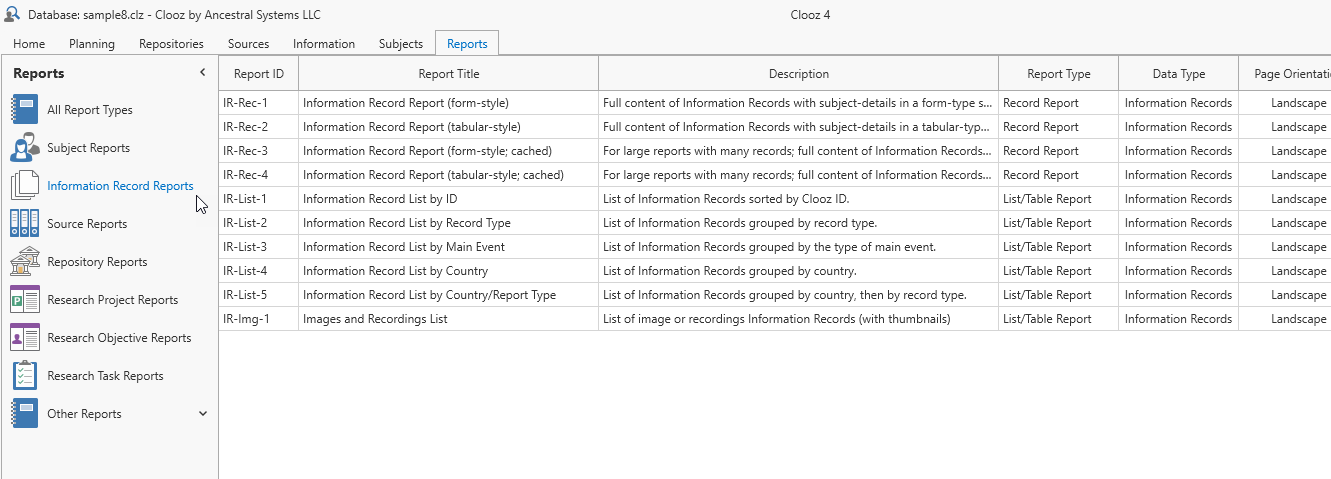
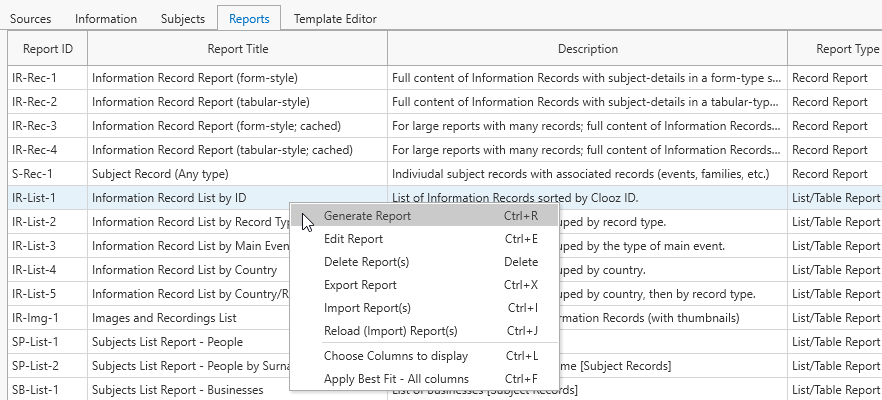 Initiate the request to generate a report by doing one of the following:
-
double-click the desired report item,
-
right-click the desired report item and choose the Generate Report item from the popup context menu, or
-
select the desired report item and press Ctrl-R.
When initiating Individual Record type reports (those that don't have "List" in the name) from the Reports list, note that no data record has been selected. You will have to select the desired record(s) upon entry into the Report Viewer before a report will be generated. The Report Viewer will notify you of this required action.
List type reports will default to show all records. Options to filter the list down may be available in the Report Viewer depending on the data type.
Requesting a Report from a Records List
Initiate a request to generate a report from the list of data records on one of the main screen tabs by selecting one or more data records and then right clicking and clicking the Generate Report item (keyboard shortcut is Ctrl-R).
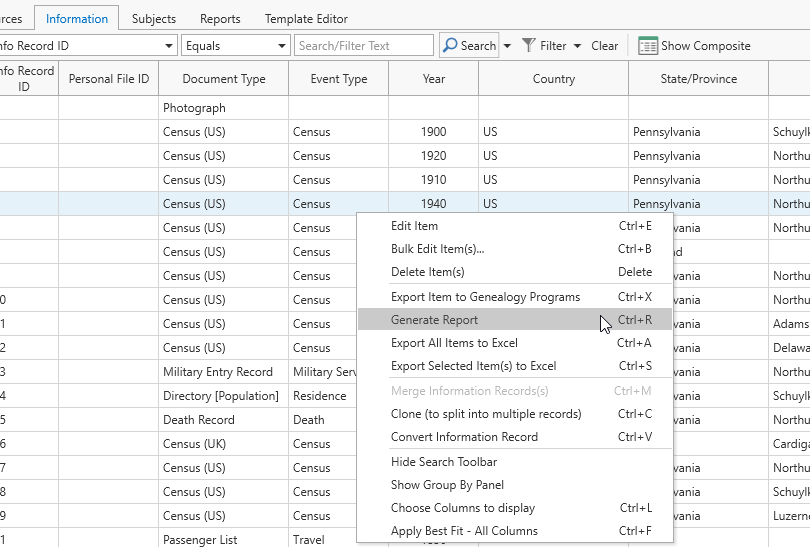
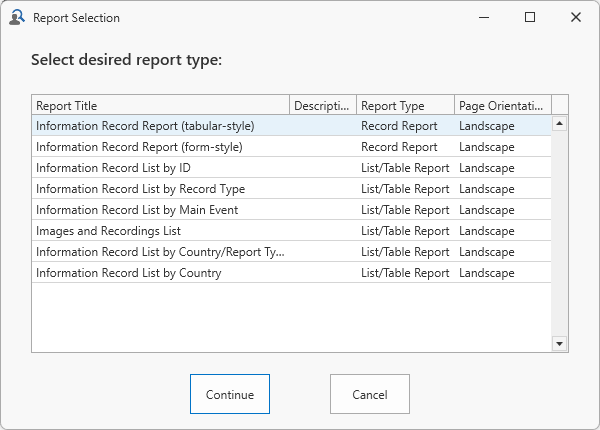 Clooz will then pop up a window for you to choose which type of report you want to generate.
List type reports have the following options to indicate which records are to appear in the report:
-
The records specifically selected (when you clicked the Generate Report command)
-
The records as currently filtered in the list
-
All records of this data type
If this is an Individual Record type report, your initial selections (when you clicked the Generate Report command) will be in the report, although there is an option in the Report Viewer to change the record selection.
If you intend to generate a list of only some records of those in the database, it may be faster to do the filtering in the main screen list versus using the filtering options in the Report Viewer. This is particularly true if you have a large set of data (thousands) in the database. The filtering options on the main screen list offer some additional filtering options not available within the Report Viewer. Something to keep in mind.
Requesting a Report from a Record Editor
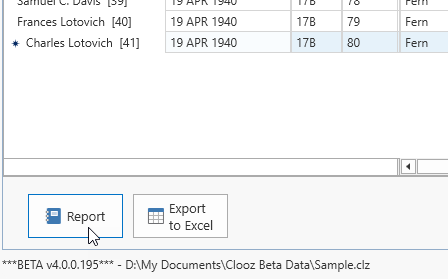 There is a Report button, as well as an Export to Excel button in the lower left corner of each of the data editors in Clooz.
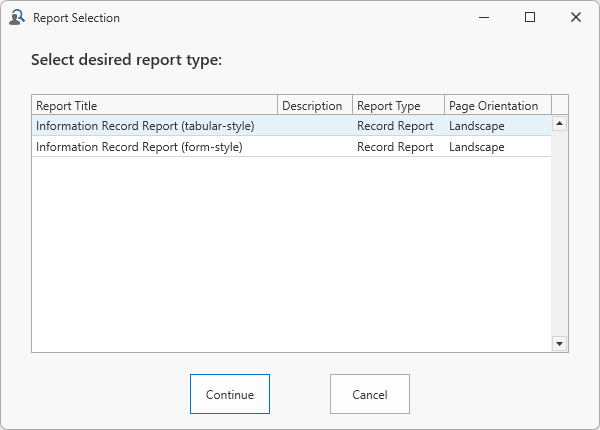 Clicking the Report button will bring up the Report Selection window for you to pick which report to run. Only Individual Record reports are supported from the editors, since only one record has been selected (the one you are editing).
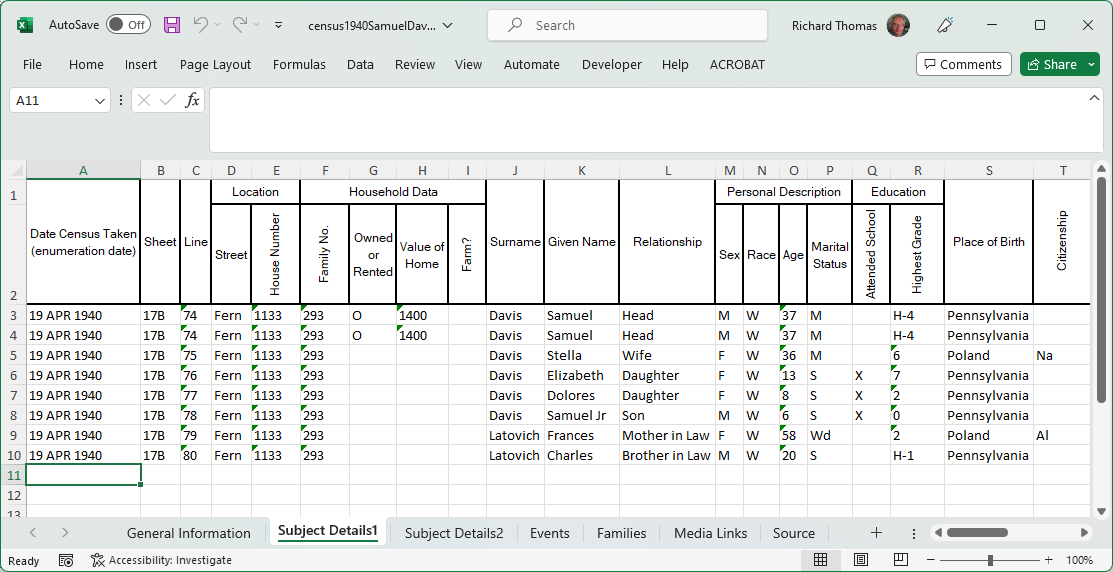
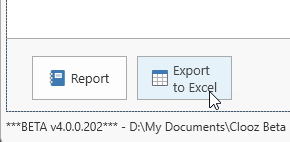 Clicking the Export to Excel button in any of the data editors will have Clooz produce an Excel worksheet file (with multiple worksheet pages for most data types) that is a content dump of the data associated with the data record currently being edited.
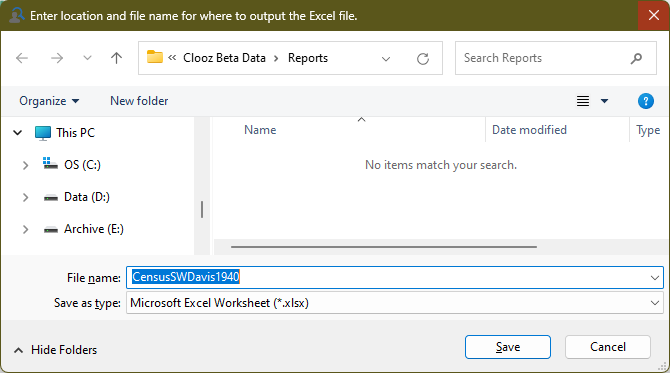 The first step to occur is selecting the filename and location for the new worksheet file.
The worksheet file will then be created at that location and opened in Excel (or whatever program your computer has set as the default program for the .xlsx file type). Tabs (worksheets) are setup in Excel to contain all the information in various types of records associated with the record originally opened in the editor. This Excel file is then a complete dump of all the information from that individual data record.